
Slidepad
Description
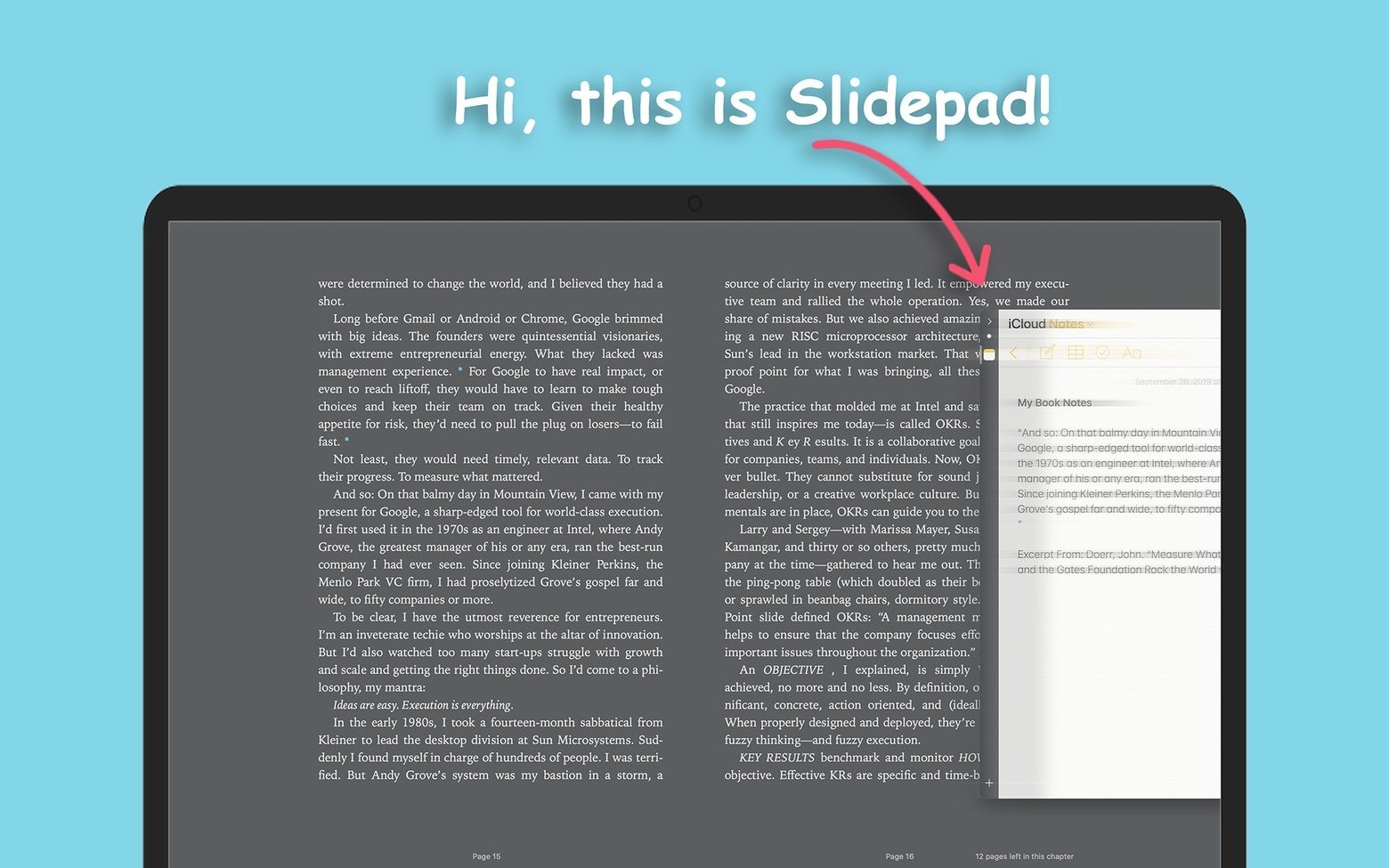
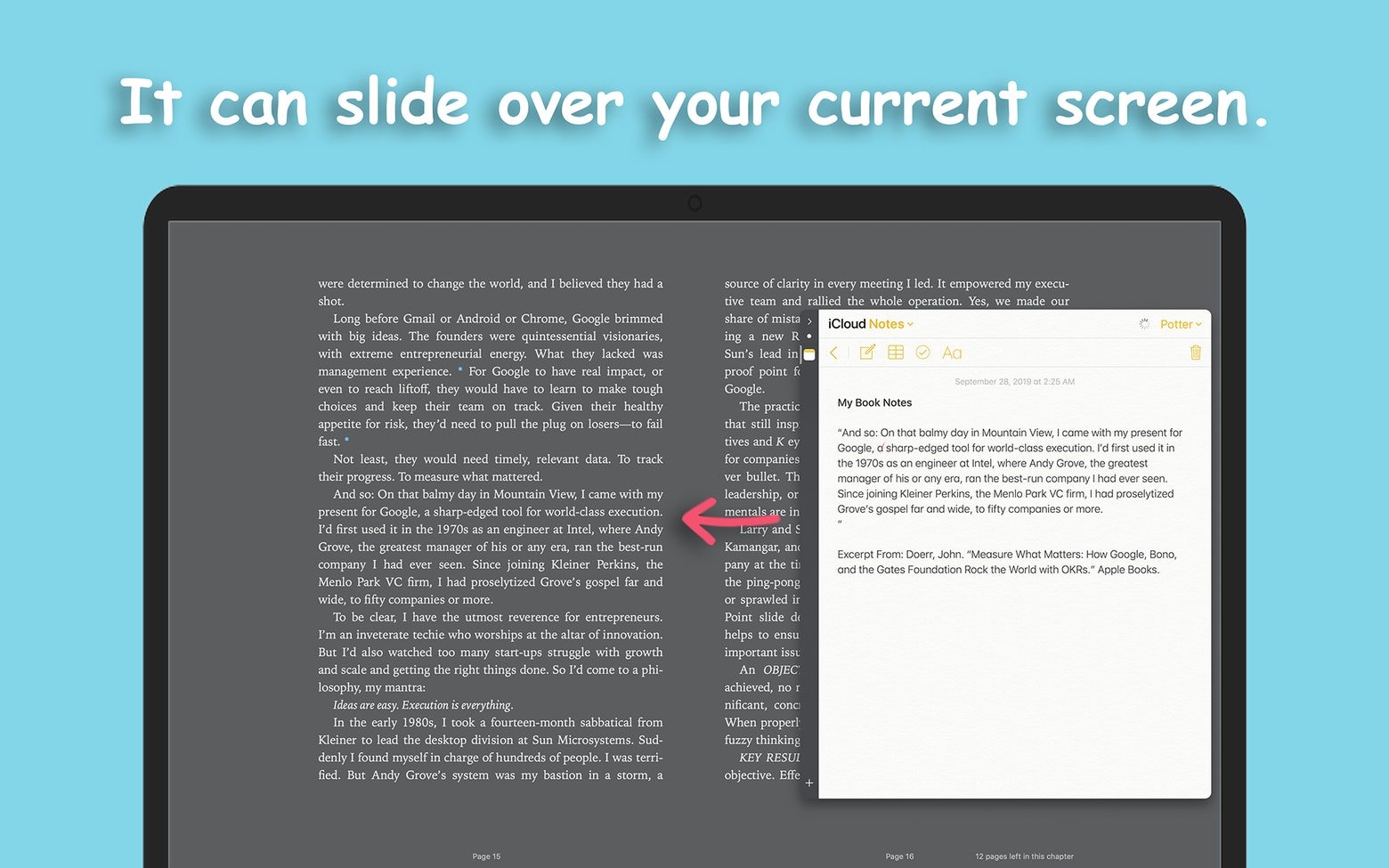
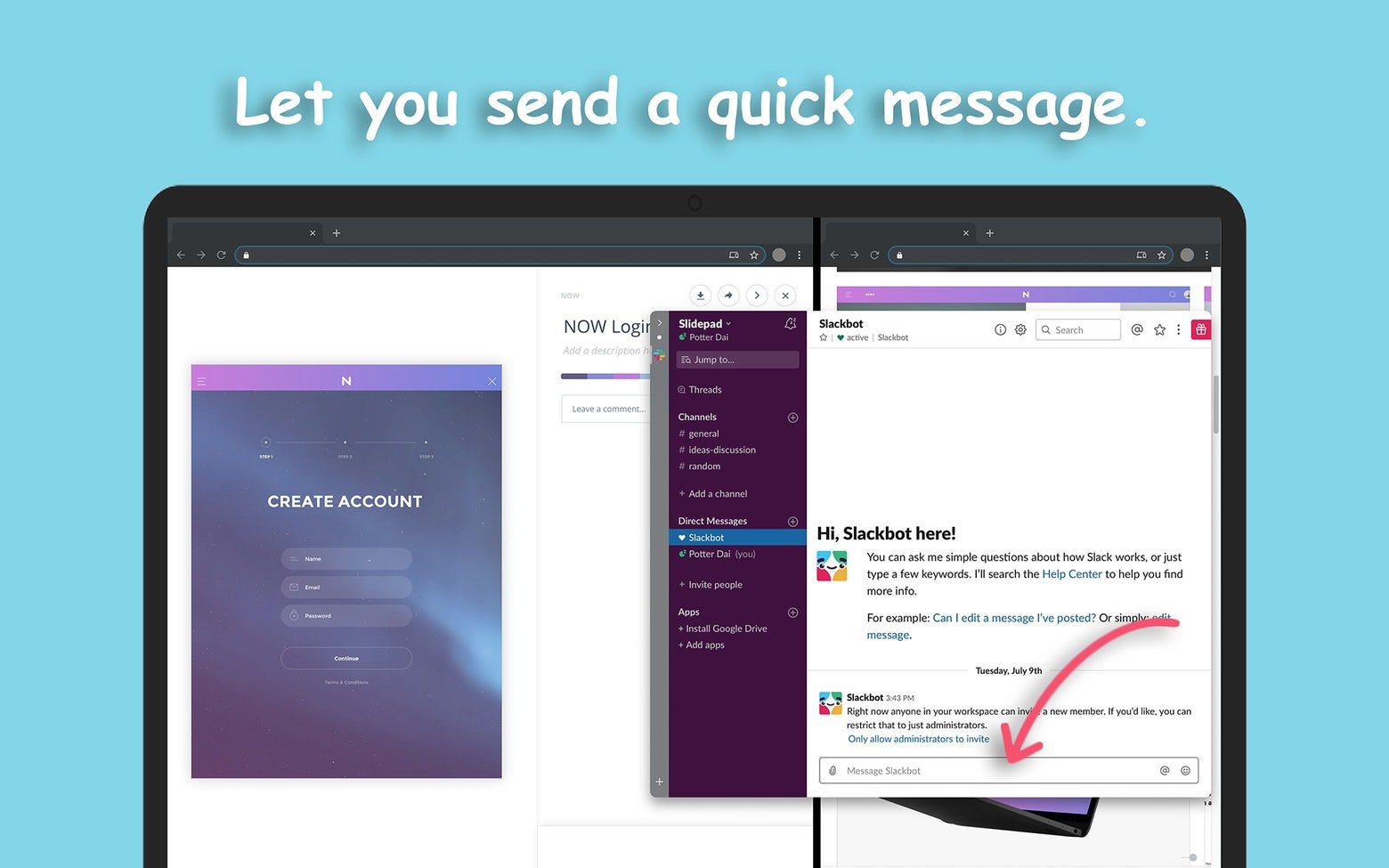
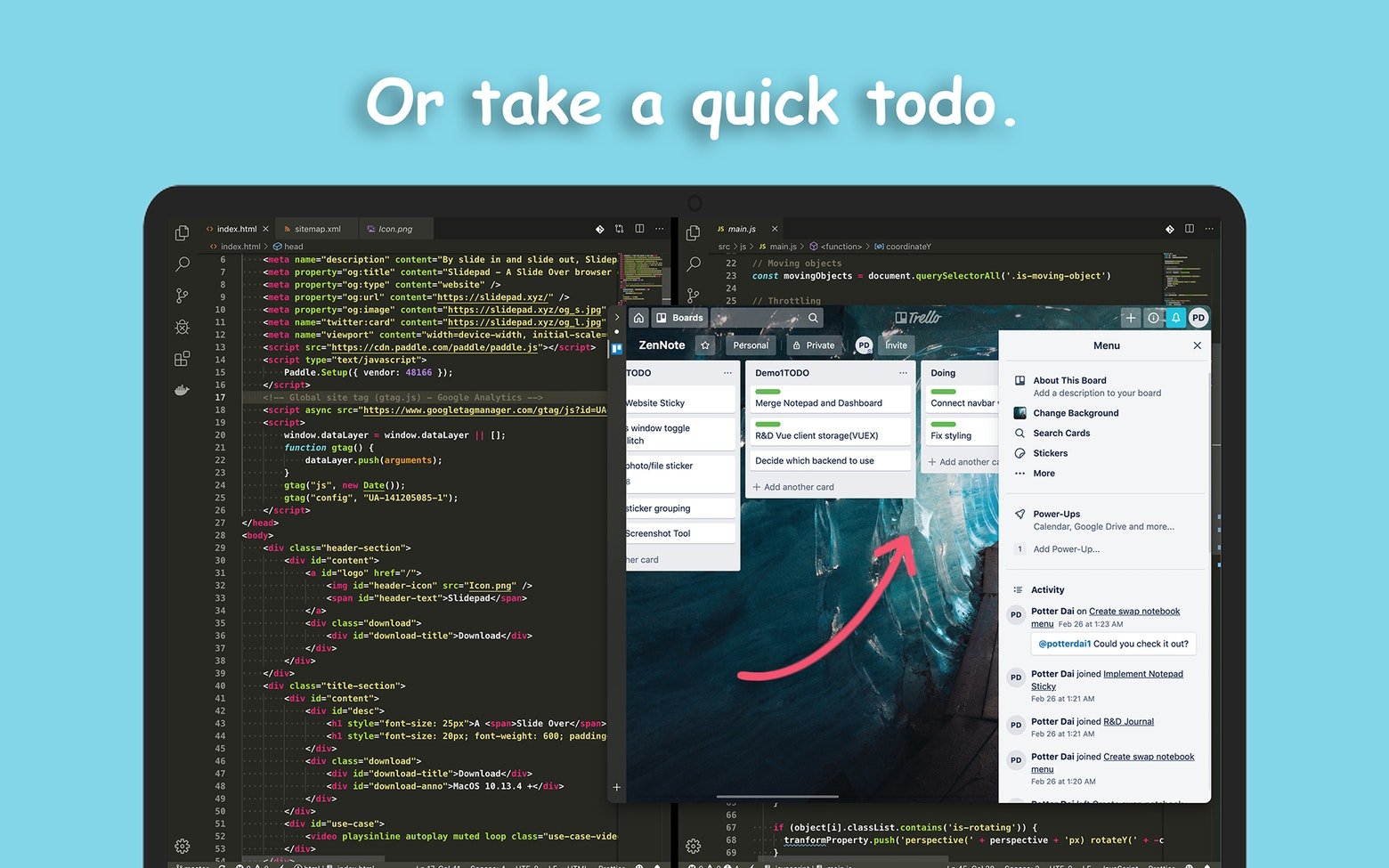
Slidepad is a streamlined browser that brings the flexibility of iPad-style multitasking directly to your Mac screen. Expand it or collapse it, gaining instant access to all the websites or web applications you regularly use. Whether you need to send a message, watch a video, or check your to-do list — everything can be done remarkably fast without getting lost among countless tabs and interfaces. Experience a first-class sliding sidebar inspired by the Slide Over feature on iOS 13, as well as applications like Franz and Station.
Intuitive Window Switching
The Slidepad app places a slide-out panel on your Mac screen that already contains a curated collection of web applications such as Slack, Gmail, and YouTube — the online spaces that fill your everyday routine. Simply move your mouse cursor to the left or right edge of the screen for quick access and seamless switching between them.
Quick Actions to Save Your Time
Imagine you want to compose an email, and to do so you need to glance at your Calendar and check a recent conversation in Slack. With Slidepad, you won't have to switch back and forth between separate programs. You can keep all necessary windows active at the same time without cluttering or overloading your screen.
Limitless Workspace
Navigate anywhere you wish using the powerful omnibox built into Slidepad. No matter what resource you want to add, all it takes is simply typing a URL or keywords, just like you would in any standard browser. There are no restrictions on the number of added applications — Slidepad download and setup scale effortlessly to match your exact needs.
Customizable Sounds and Notifications
You can enable or disable Auto Mute within the application's Settings, and also assign specific sounds to each panel movement or transition. To strengthen the presence of your most essential applications in your daily workflow, use badge icons and live notifications — all consolidated within a single Slidepad window on your Mac.
Take Control of Your Navigation
Your browsing history on Mac matters because it reveals which applications play the most critical role in your daily work process. Slidepad mac functionality accordingly preserves that history for your convenience. But privacy is equally important. Therefore, if you ever want to start fresh, Slidepad lets you clear your cache and cookies directly from the menu bar with just a couple of clicks.
Extensive Compatibility
There are no limitations on the types of content you can interact with using Slidepad. Whether it's a PDF document or a multi-window program, Slidepad will get you there without hesitation. The application includes picture-in-picture support, so you can watch videos in floating windows while continuing your work. And for macOS 10.14 and later, you can take advantage of the elegant Dark Mode for a comfortable visual experience.
Frequently Asked Questions
You May Also Like
Reviews & Comments
No comments yet. Be the first to share your thoughts!