
Duplicate Finder and Cleaner
Description
Duplicate Finder and Cleaner is a state-of-the-art tool for removing duplicate and similar files even from large volumes of storage on your Mac. This remarkable tool works seamlessly with multiple photo libraries, iPhone backups stored on your Mac, as well as files from internal hard drives and external storage devices.
Duplicate Finder and Cleaner app helps you get rid of all repeated and similar files on your Mac by using an advanced comparison algorithm with just a single click of your mouse!
Smart, accurate, and the simplest tool available for finding and removing similar photos and duplicate files on your Mac.
If you want your photo libraries and folders to be well-organized and completely clutter-free, Duplicate Finder and Cleaner Mac is the easiest and most effective tool for you. It stands apart from other similar and duplicate file finding applications because it compares files with just one click. This helps you scan and remove repeated and similar files effortlessly. It searches for similarities across your images and easily detects both similar and duplicate files within your entire storage.
KEY FEATURES
Remarkably Simple Way to Add and Search Files:
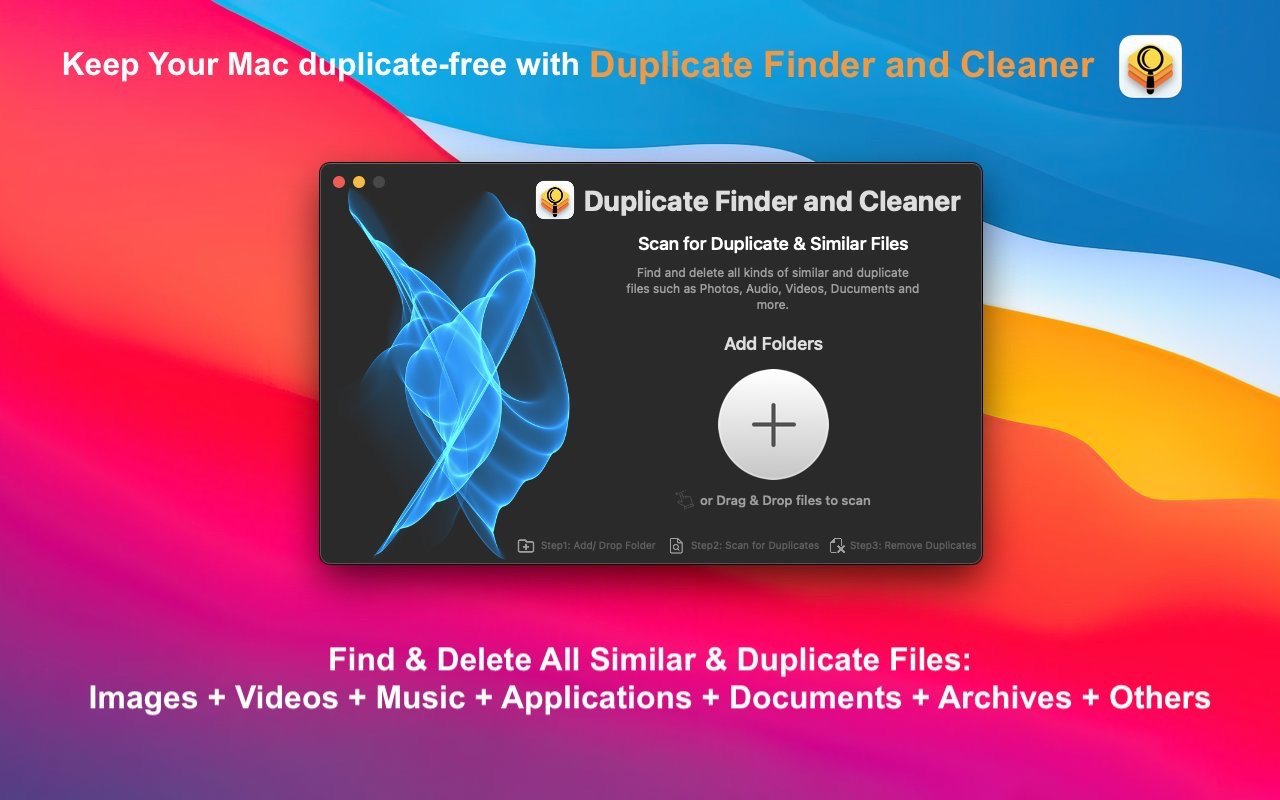
Simply drag and drop multiple photo libraries and folders into the scan list to begin the process.
Scanning:
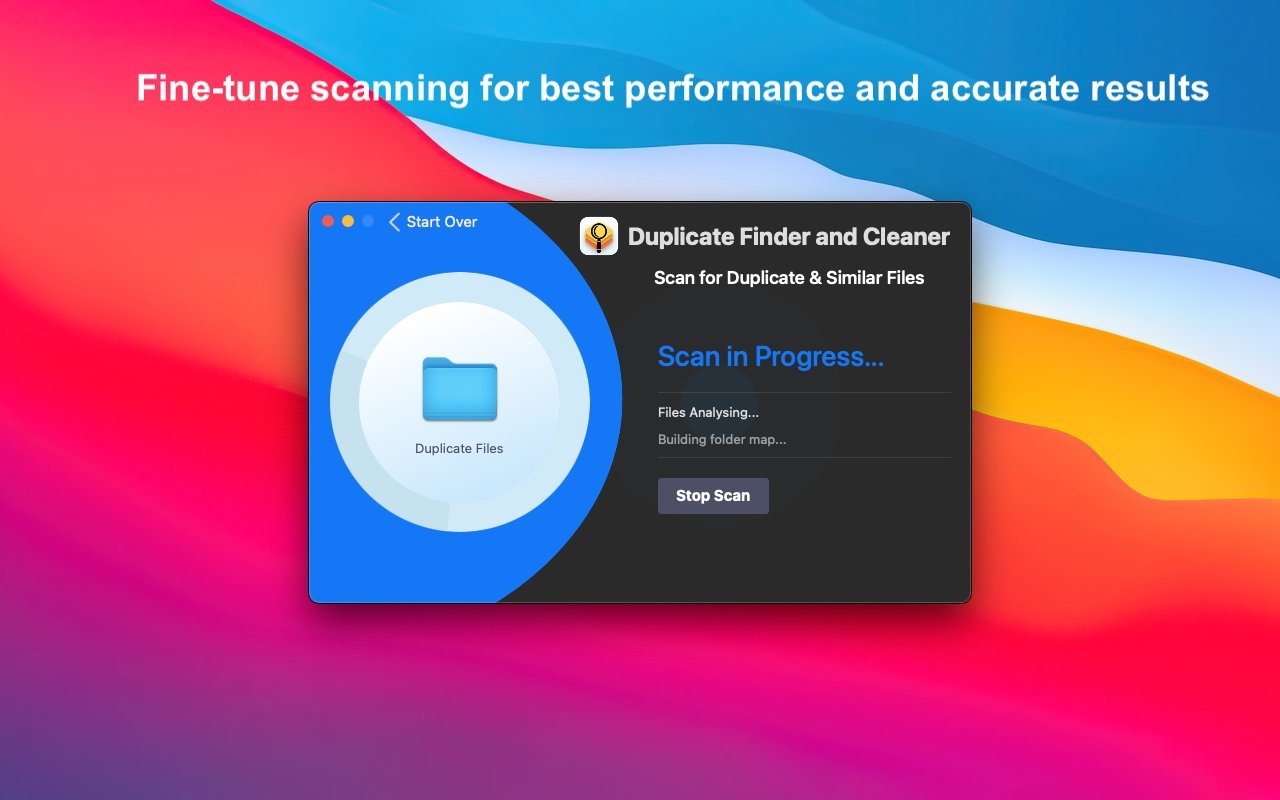
Duplicate Finder and Cleaner includes a highly optimized scanning algorithm. The entire process of finding duplicates and similar items runs smoothly and incredibly fast on your Mac.
High Speed and Quality:
This tool utilizes a refined and advanced comparison algorithm to find highly similar files, delivering incredibly fast and remarkably accurate results every time.
Compact Viewing:
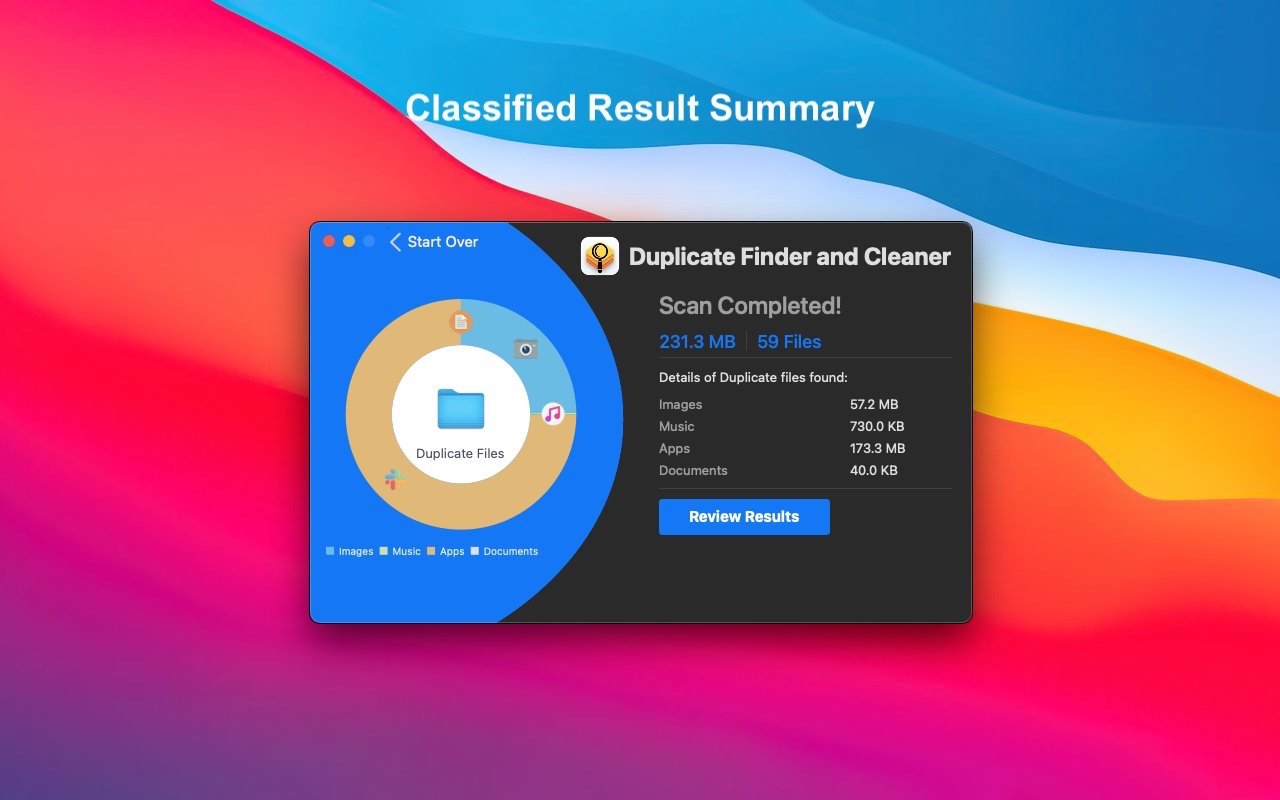
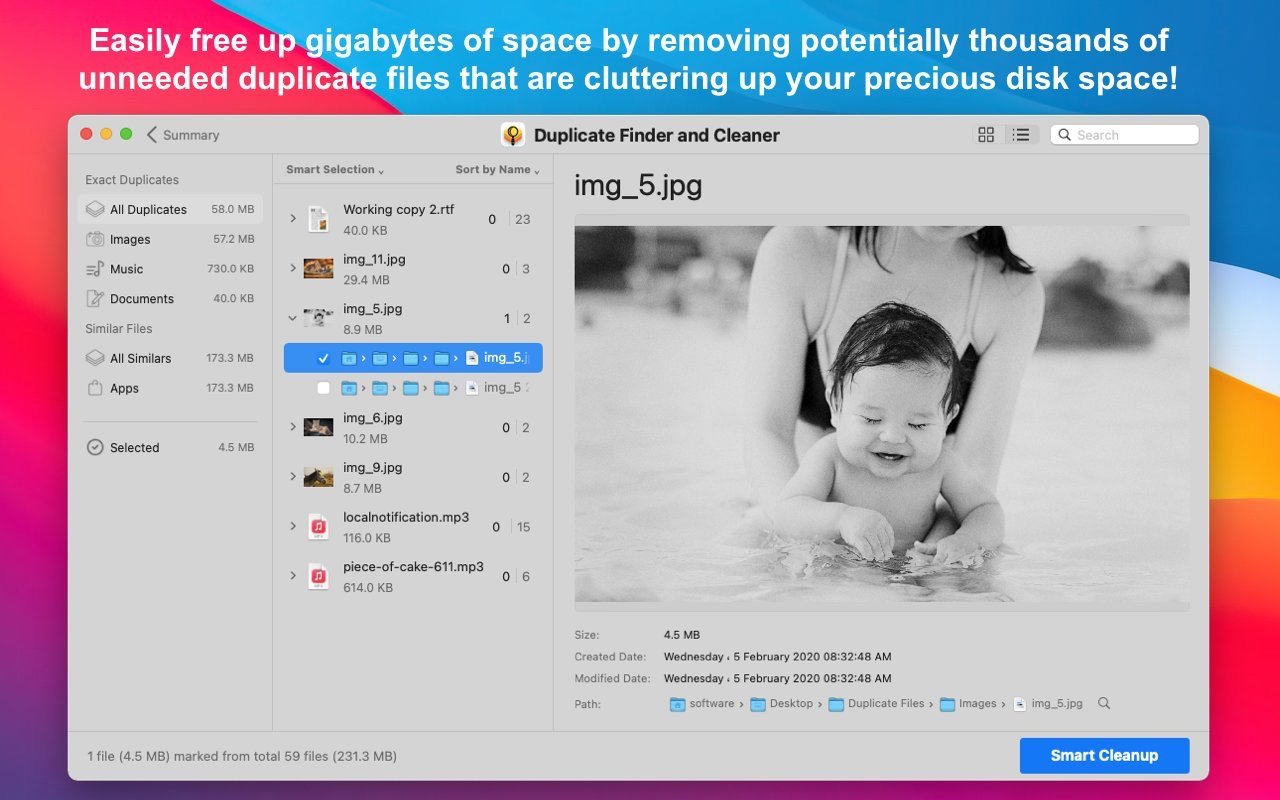
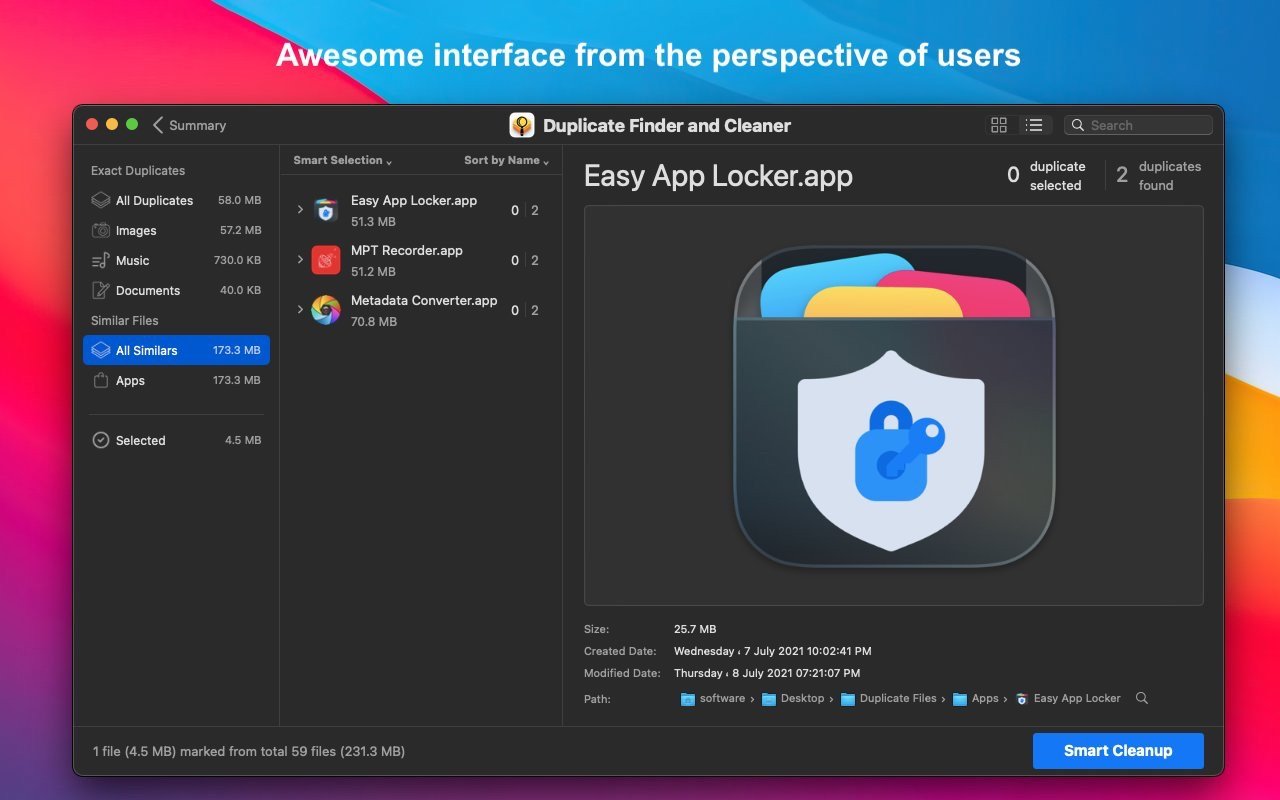
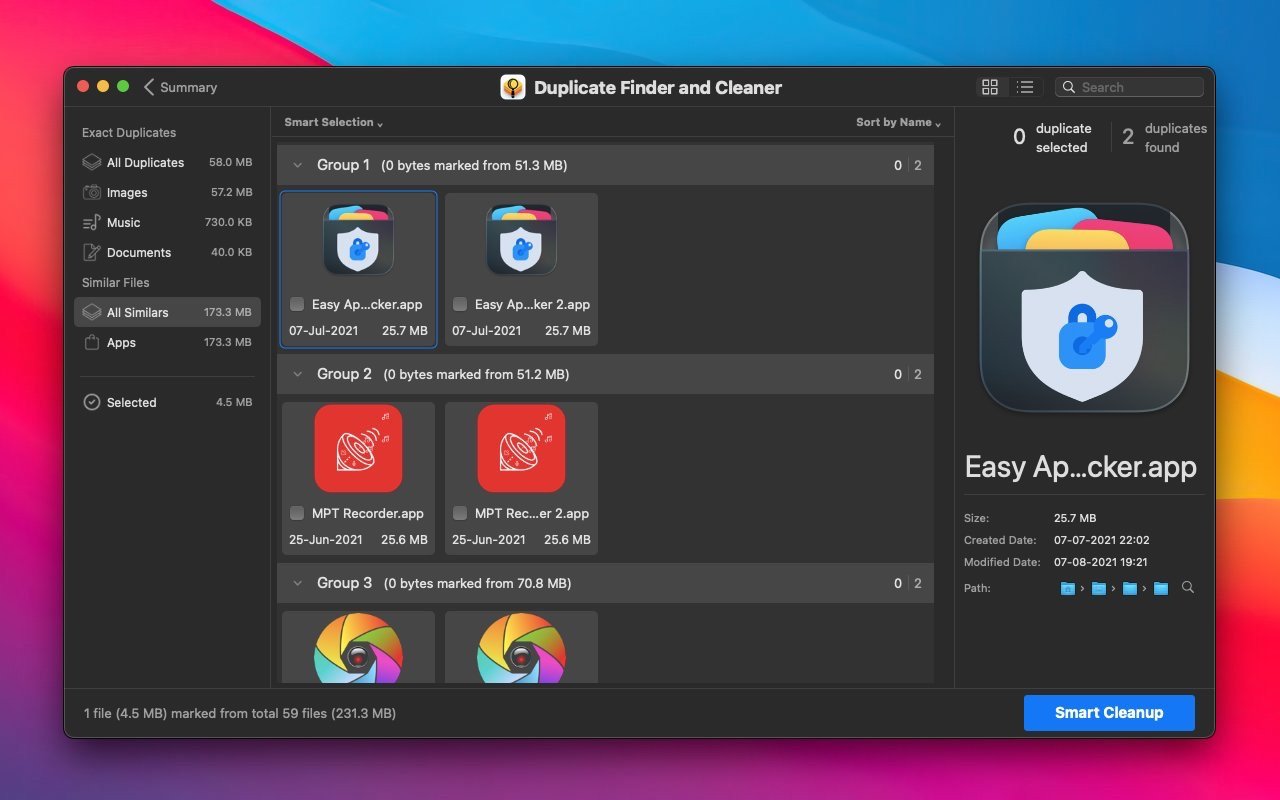
Duplicate Finder and Cleaner features a stunning and intuitive interface from the user's perspective. This interface is divided into a grid view and an outline view. Each view has its own specific utility tailored to different user needs and preferences. Grouping is an excellent way to categorize all similar and duplicate files so that users can easily browse through all results in a convenient and well-organized format.
Auto-Marking of Duplicates and Similar Files:
Auto-marking is an intelligent method that ensures each group retains the best quality file within that group. The remaining files will be marked, and you can then choose to delete them or save them to a selected folder. The auto-marking feature depends on the priorities that are configured in the default auto-marking settings.
Removal Methods:
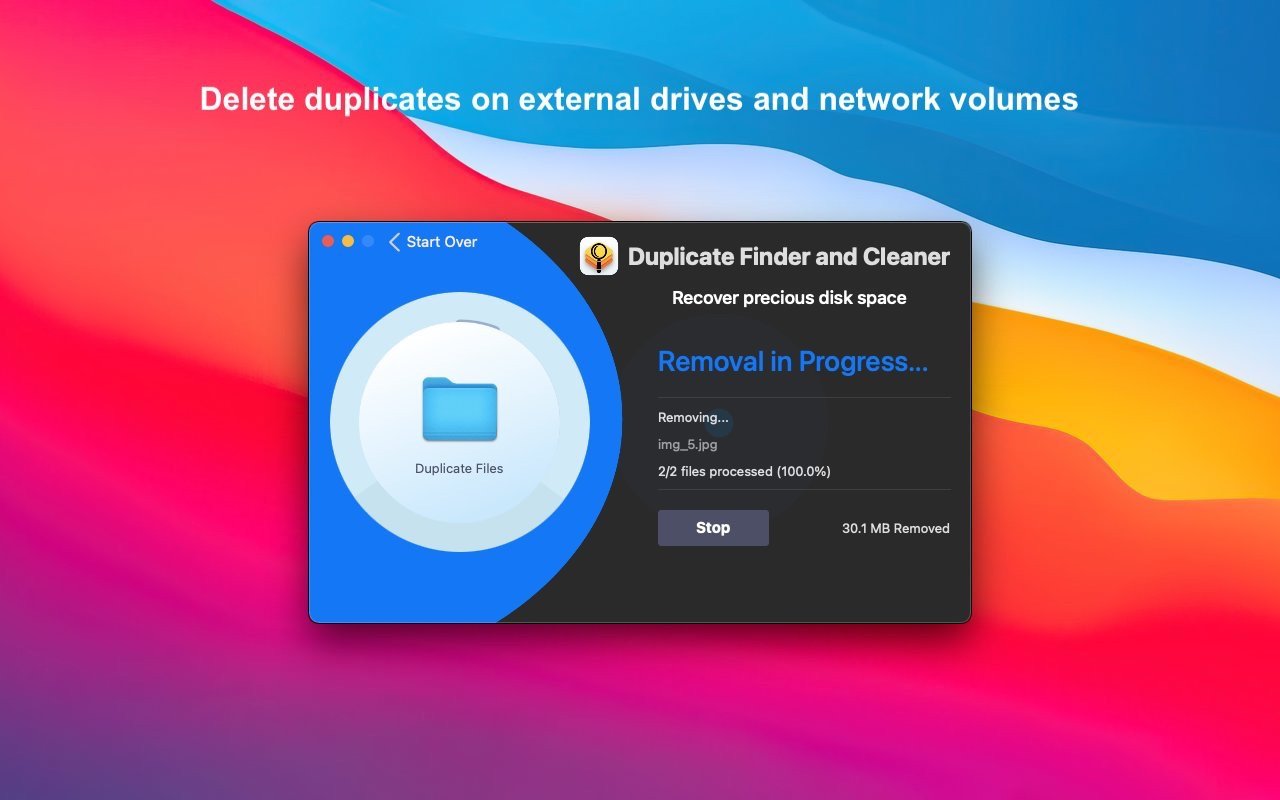
All selected photos and files can be deleted using three distinct methods:
A. Move to Trash
B. Delete Permanently
C. Move to a Selected Folder
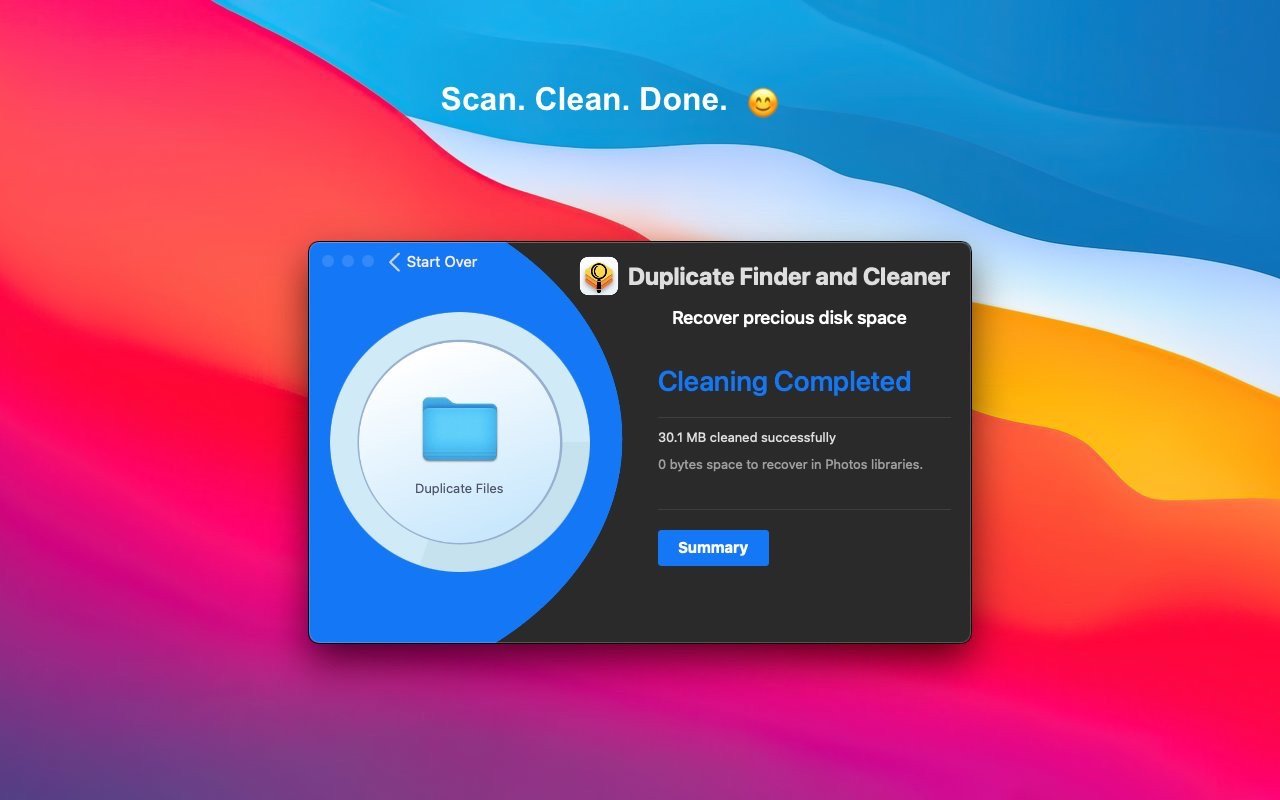
Easily free up gigabytes of valuable space by removing potentially thousands of unnecessary duplicate files that are cluttering your precious disk storage on your Mac! If you are looking for duplicate finder and cleaner download mac, this is the ultimate solution to reclaim your storage.
Frequently Asked Questions
You May Also Like
Reviews & Comments
No comments yet. Be the first to share your thoughts!