
Bartender 6
Description
Bartender 6 is a smart utility and versatile menu bar organizer for Mac. It helps you arrange, search, and truly make the most of the icons in your Mac menu bar while keeping your desktop clean and uncluttered. Featuring a minimalist interface and a straightforward layout, Bartender 6 Mac remains fully functional and always ready to assist you exactly when you need it.
Customize your menu bar on macOS
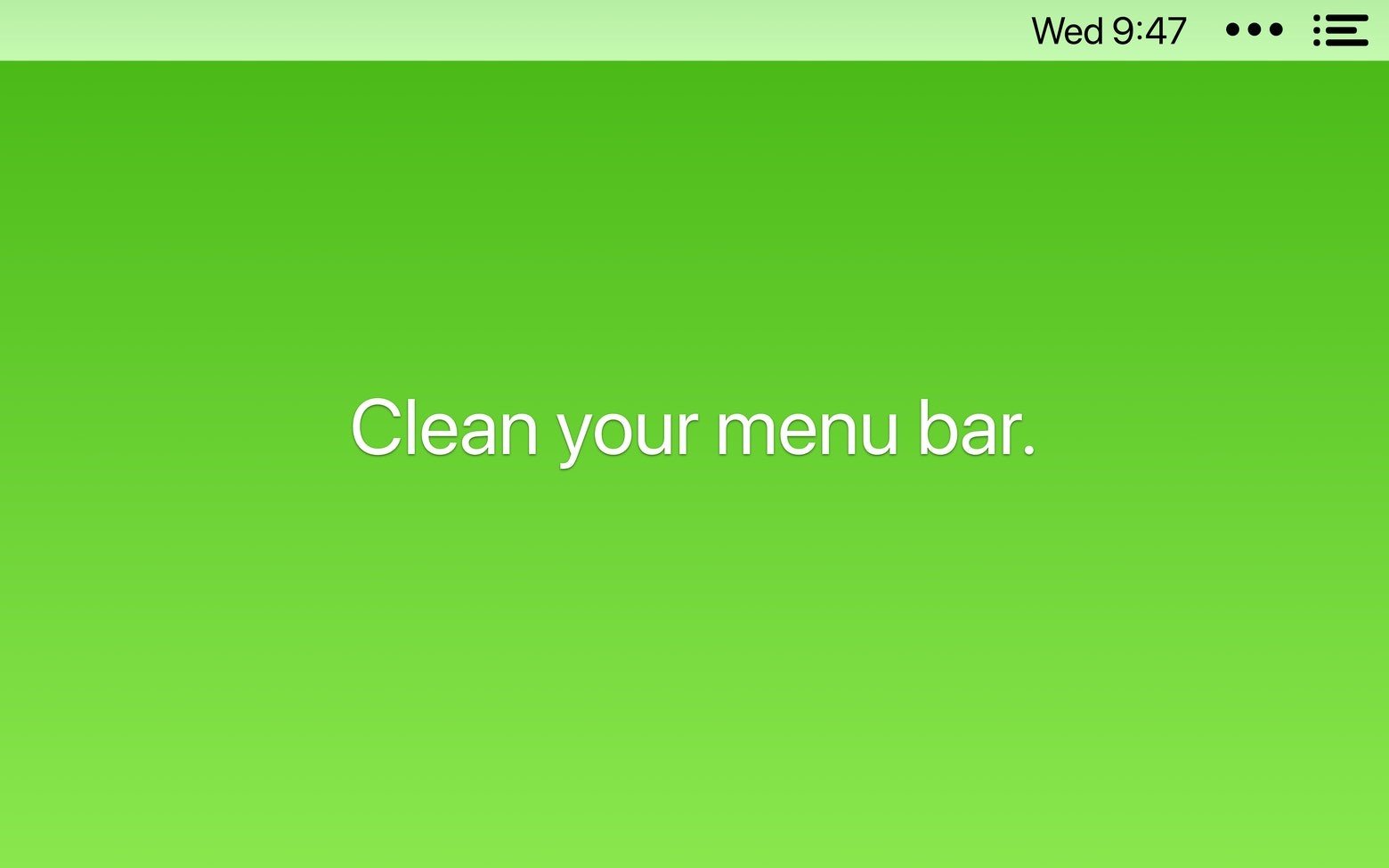
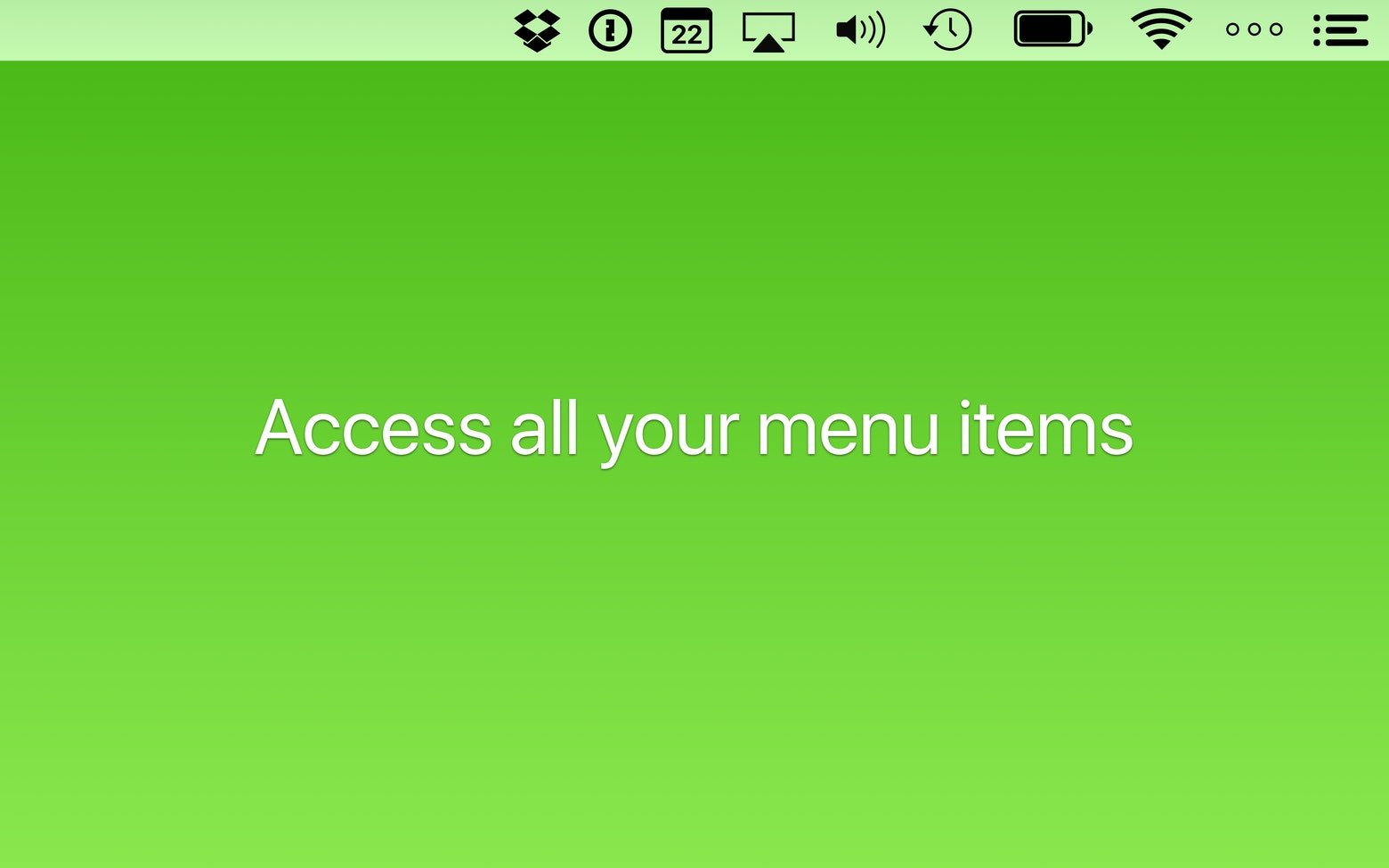
The application itself acts as a compact toolbar, allowing you to choose which icons stay visible in the main menu bar on your Mac and which ones get moved to a collapsible Bartender panel. This significantly reduces desktop clutter while keeping everything within easy reach. Even the Bartender icon itself can be hidden for a completely minimalist approach to your workspace.
Rearrange your menu bar icons
Set your preferred order for both your menu bar items and the Bartender taskbar panel by simply holding ⌘ and dragging the icons into place. Sort and hide applications on the fly to create a restrained and focused working environment that suits your personal workflow and daily needs.
Notice changes in your applications
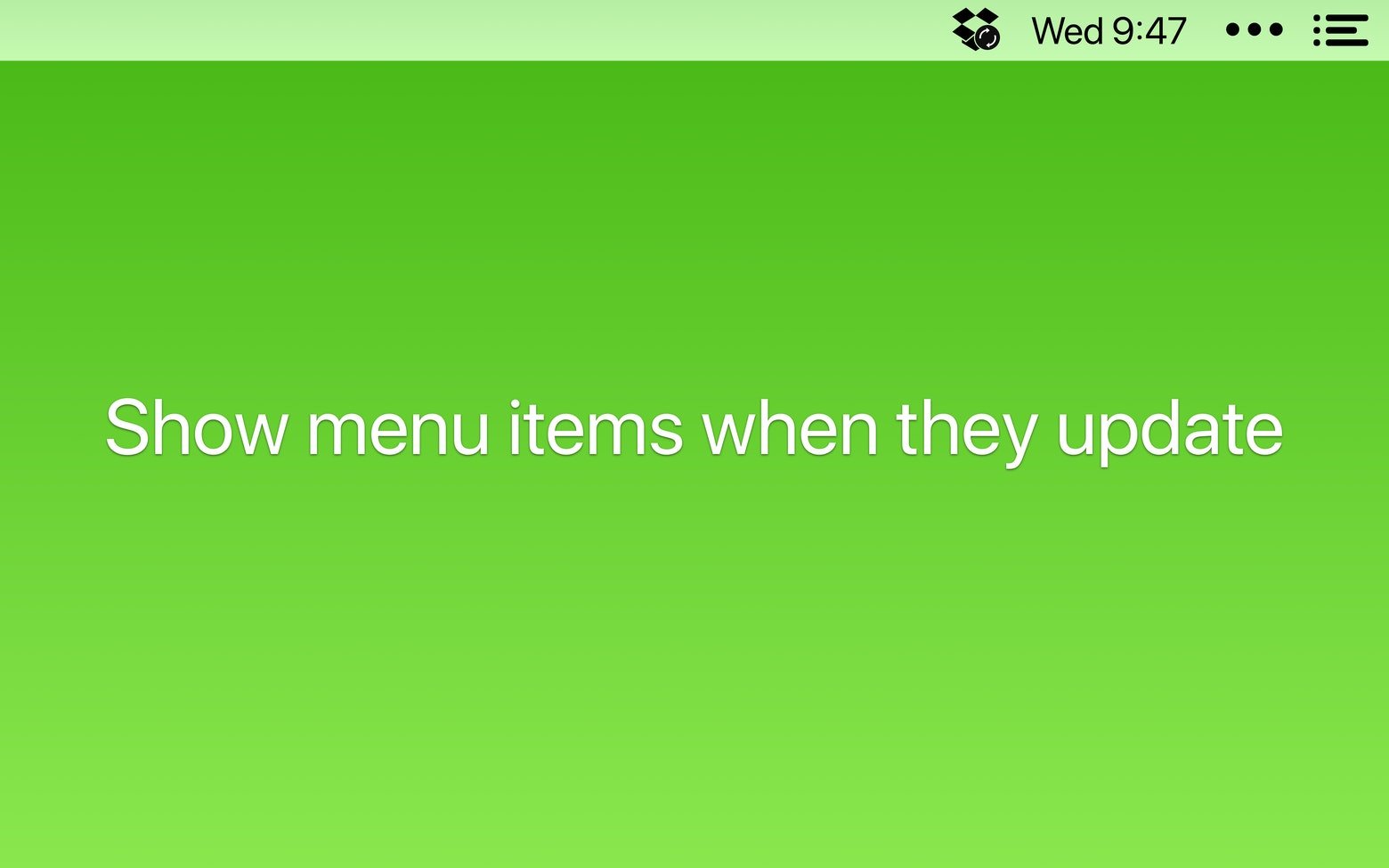
The menu bar can be incredibly useful for keeping tabs on applications while they update or change their status. Mac Bartender 6 includes an automatic display feature that reveals app icons during updates, syncing processes, or when errors occur. Once the process is complete, the icons disappear again seamlessly. This is an excellent way to receive important notifications without unnecessary distractions or fuss.
Search menu bar items
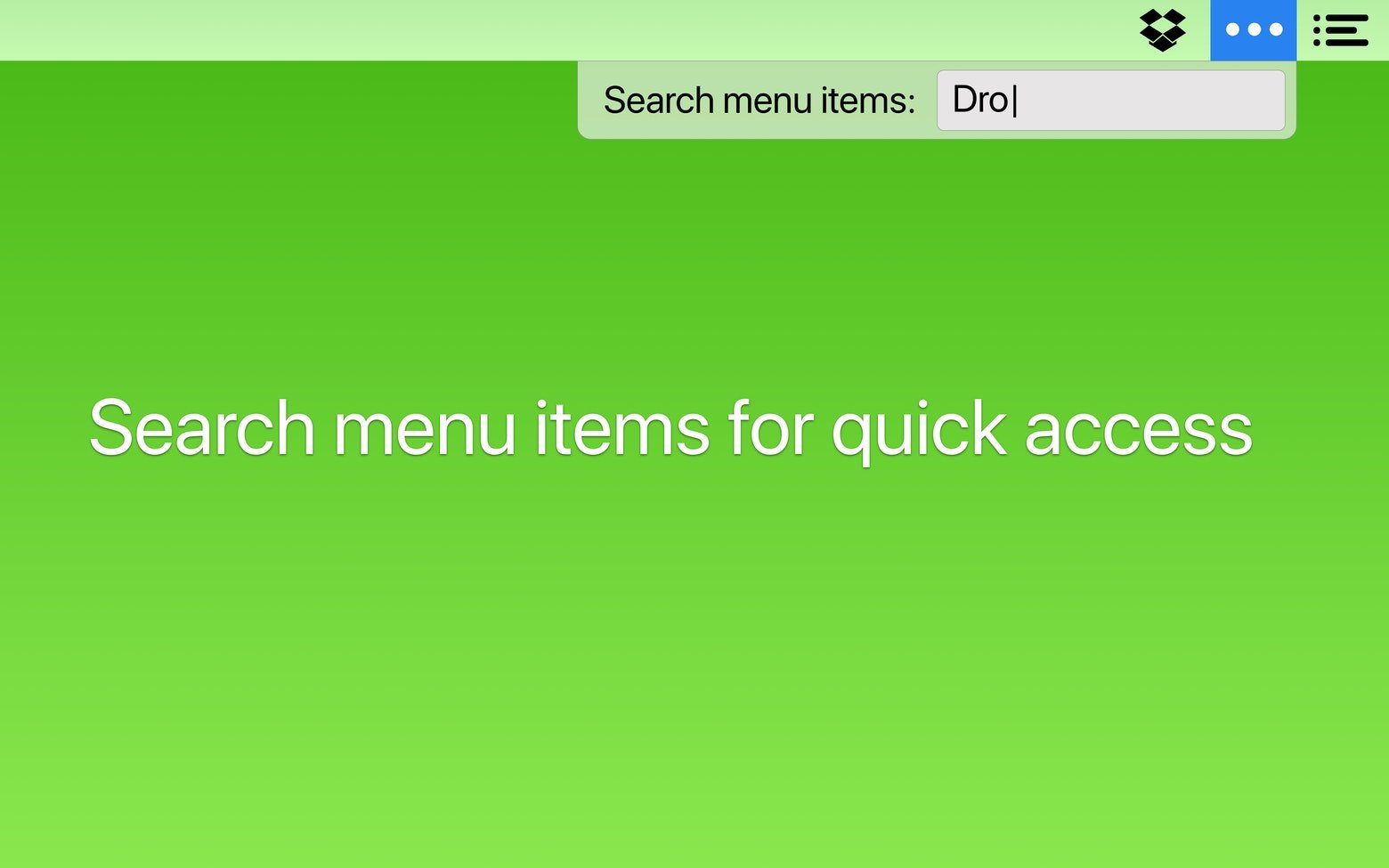
Bartender 6 for Mac is equipped with a powerful search function, so you will always have quick access to the icons you need. Regardless of the arrangement you have chosen for your icons, you can simply click on the search field and start typing the name to locate the desired application instantly. This feature serves as the perfect solution for dealing with an overcrowded and cluttered menu bar.
Create your own keyboard shortcuts
Bartender supports custom hotkeys and keyboard shortcuts for users who prefer typing over clicking with a mouse. Choose the right key combination to activate the menu and launch your applications without ever lifting your hands from the keyboard, boosting your overall productivity.
Use keyboard navigation for full control
Activate any menu bar items and navigate through them using the arrow keys and the Enter key to open them. As a result, you can effortlessly check essential information and interact with your open applications while staying focused on the task at hand and maintaining your productive momentum.
Frequently Asked Questions
You May Also Like
Reviews & Comments
No comments yet. Be the first to share your thoughts!