
AdGuard
Description
AdGuard is much more than just a simple application for blocking ads on the internet. It is a fully featured privacy assistant that shields you from online tracking, phishing attempts, and all varieties of fraud, while at the same time giving you the freedom to customize and adjust your own protection levels. The AdGuard app is designed specifically for macOS and operates seamlessly with every browser you use. Your Mac truly deserves this powerful and reliable protective shield.
Block everything that annoys you
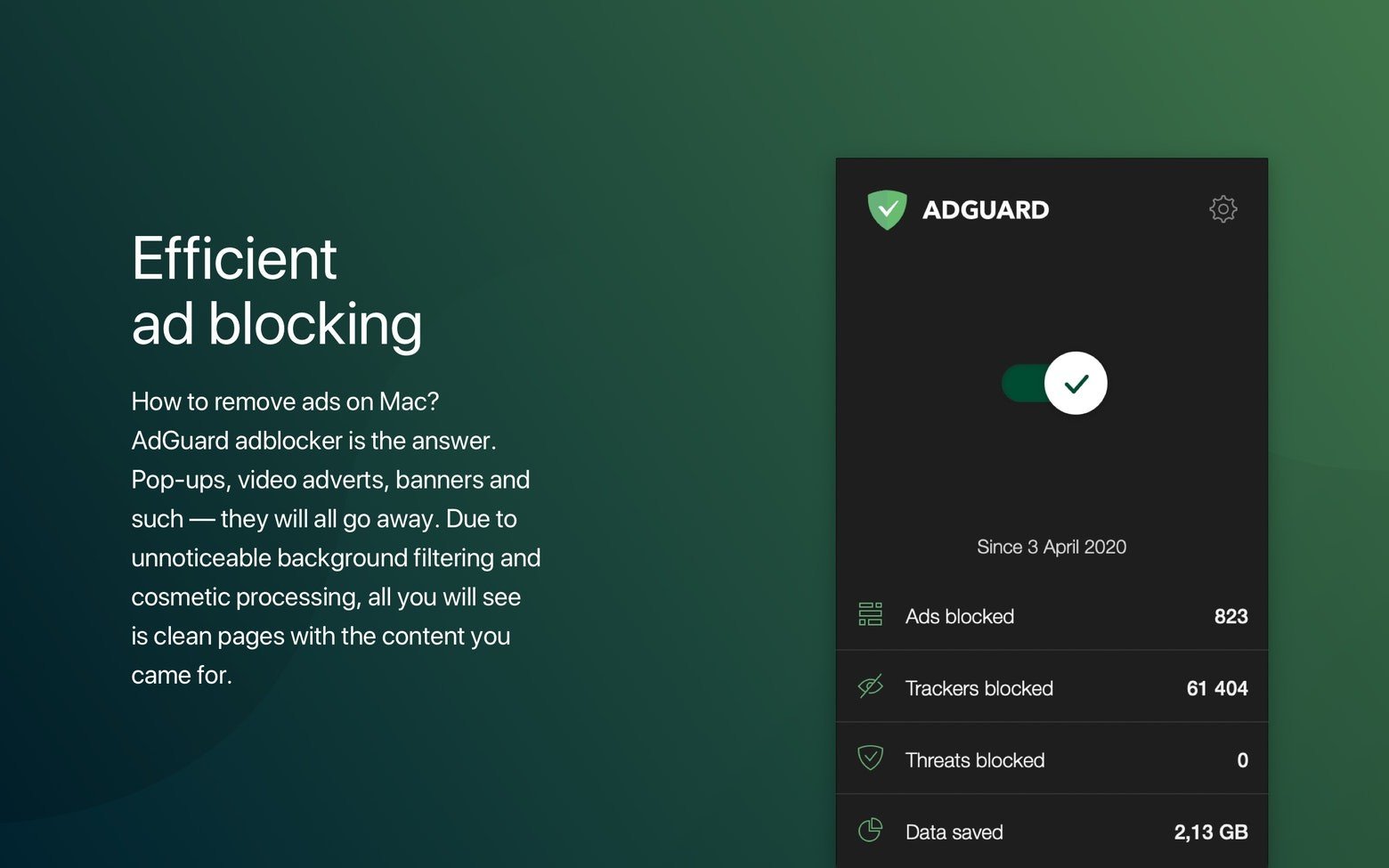
Content is what truly matters, and it should be the only thing you need to worry about while browsing the internet. AdGuard for Mac ensures that you receive exactly what you came for by eliminating every possible distraction along the way. From intrusive pop-up windows to auto-playing video advertisements and banners that seem to follow you across every website — with AdGuard they will disappear once and for all, permanently.
Fast and secure browsing
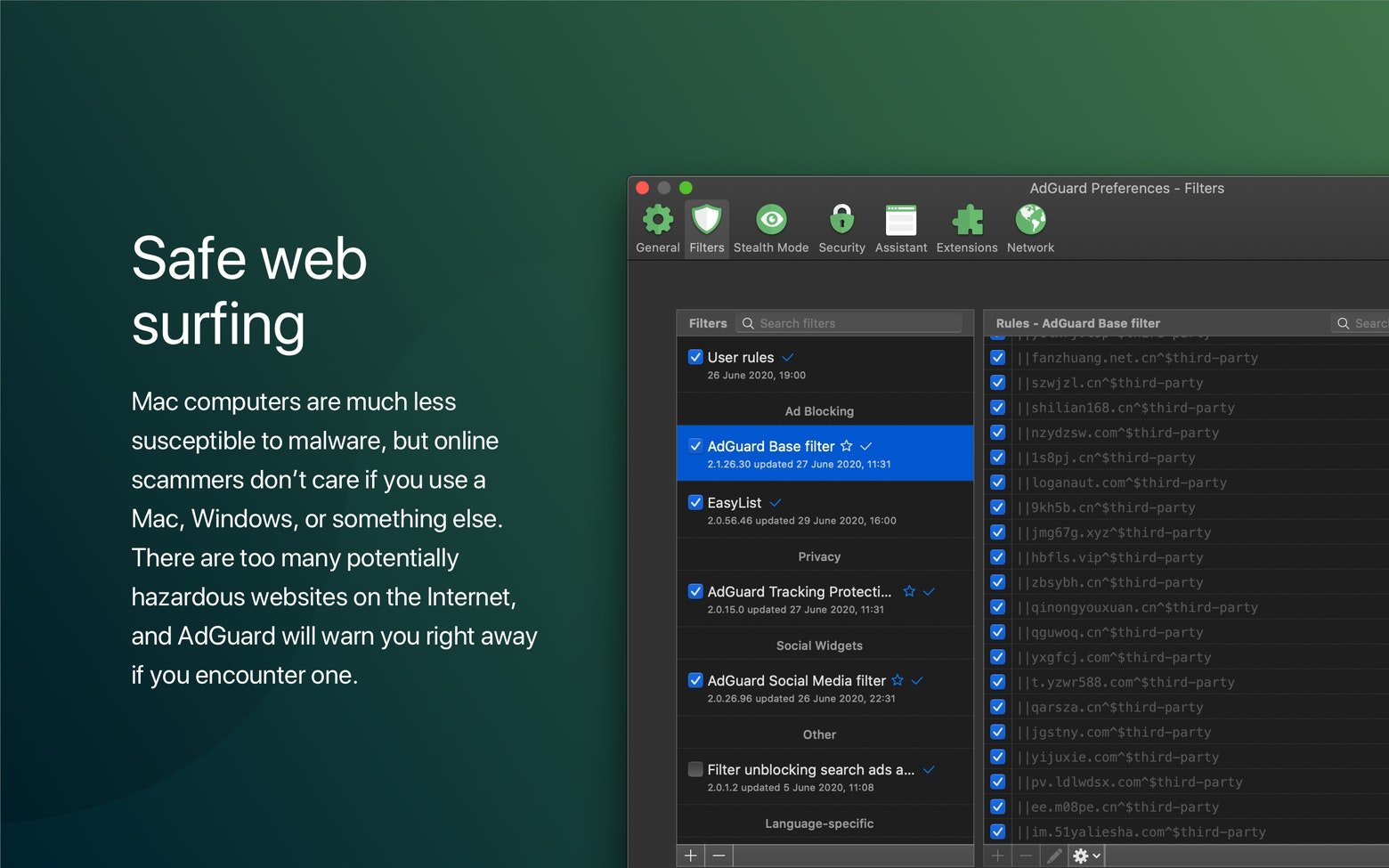
Mac users do not often encounter malicious software, but when such threats do appear, they can pose a genuine and serious danger to your computer. AdGuard scans websites for any suspicious or dangerous activity and keeps you safely away from potential harm. By blocking annoying distractions and unnecessary content, the application noticeably speeds up your entire internet experience on Mac.
Protect your personal information
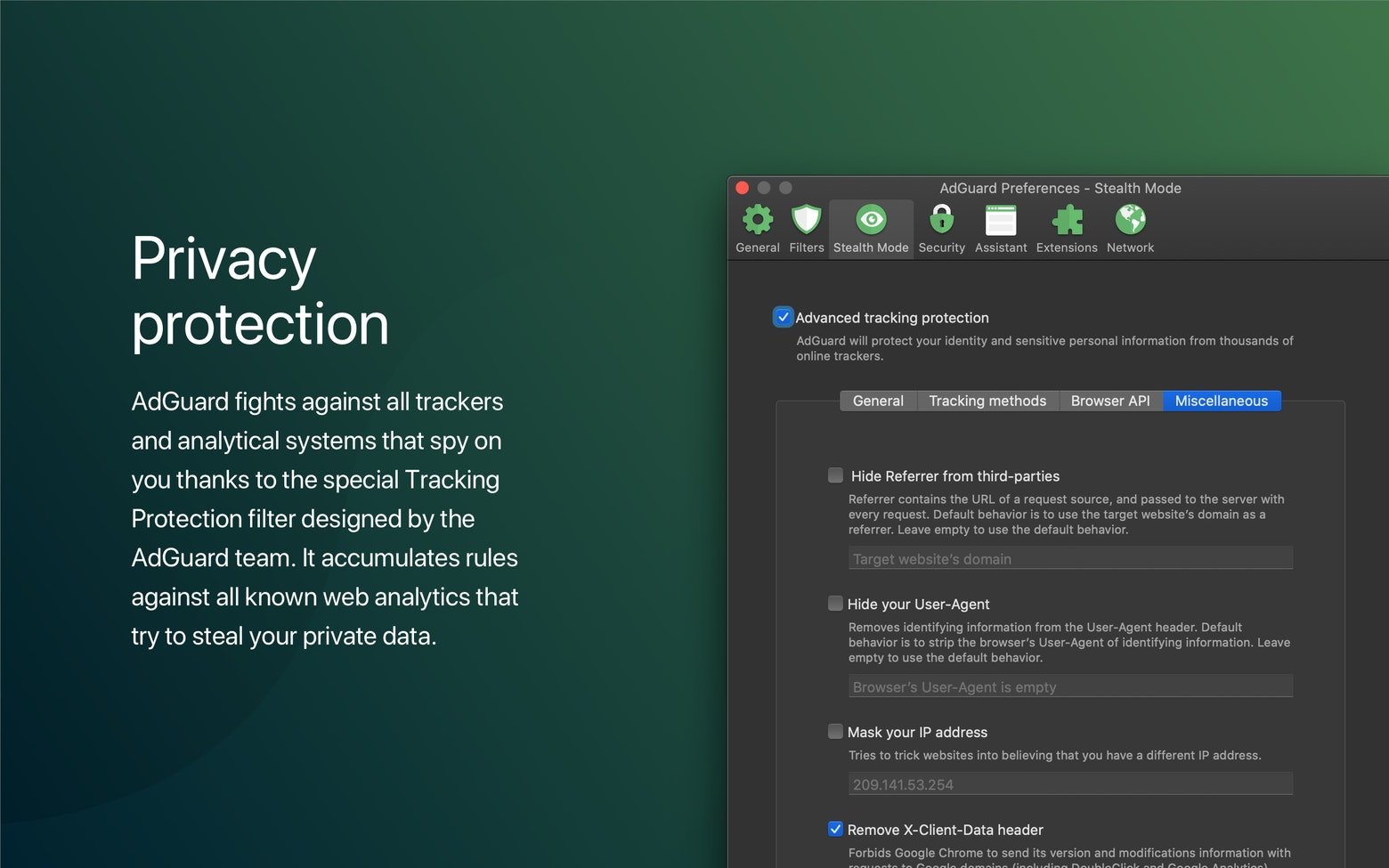
AdGuard DNS-level filtering and built-in tools hide your private data from all kinds of trackers and analytics systems operating across the web. The application includes a powerful spyware filter that instantly identifies and neutralizes potential threats before they reach you. In situations where any website on the internet asks you to provide personal or sensitive information, AdGuard makes absolutely certain that doing so is safe and secure.
Filter browsers and applications
Unlike other ad blockers that function merely as browser extensions and remain limited to a single browser environment, the AdGuard app penetrates deep into the core of your Mac system. The application allows you to suppress and hide advertisements inside other programs and desktop applications. Thanks to its robust and reliable blocking filters, you can also manually remove specific annoyances — whether it is an ad embedded within an application or an unwanted element on a web page.
Works perfectly anywhere you need it
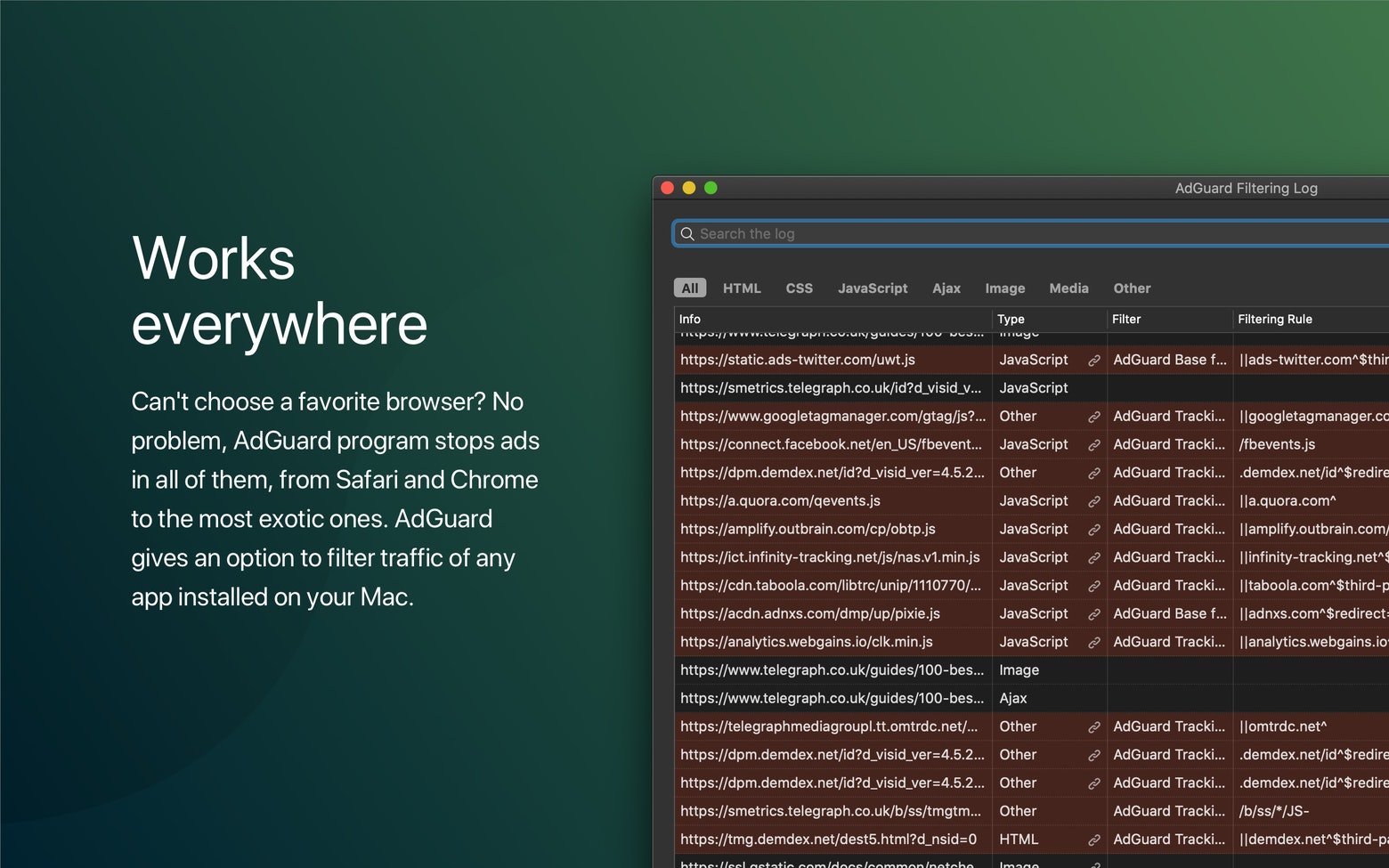
Built natively for macOS, AdGuard for Mac will instantly adapt to your existing workflow and daily routine. It features full dark mode support, a clean and intuitive user interface, and all those thoughtful details that you love so much in well-crafted Mac applications. When it comes to browser compatibility, AdGuard does not ask you to choose just one. The application covers not only Chrome and Safari but extends its protection across all browsers, allowing you to enjoy safe and secure browsing absolutely anywhere.
Frequently Asked Questions
You May Also Like
Reviews & Comments
No comments yet. Be the first to share your thoughts!